Running Health Checks
This guide explains how to execute health checks and navigate the Health Checker interface.
Prerequisites
- Joomla 5.0 or later
- Super Admin access (Health Checker is only available to Super Admins)
- Health Checker component installed and enabled
Accessing Health Checker
- Log in to your Joomla administrator panel
- Navigate to Components → Health Checker from the main menu
- You'll see the Health Checker dashboard
Running a Health Check
First-Time Setup
When you first access Health Checker, you'll see a welcome screen explaining what the tool does. Click "Run Health Check" to perform your first scan.
Subsequent Checks
- Click the "Run Health Check" button in the toolbar
- Health checks begin executing immediately
- Watch the progress bar as checks complete
- Results appear in real-time as each check finishes
What Happens During a Check
- Parallel Execution: Multiple checks run simultaneously for speed
- Safe Operation: All checks are read-only; nothing is modified
- Session Storage: Results are stored in your PHP session only
- No Background Tasks: Checks only run when you click the button
TIP
Health checks typically complete in 10-30 seconds depending on your site size and server performance.
Understanding the Interface
Toolbar Actions
- Run Health Check: Execute all health checks
- Export JSON: Download results as JSON data
- Export HTML: Download a formatted HTML report
- Clear Results: Remove current results from session
Results Summary
At the top of the results page, you'll see:
- Total Checks: Number of checks executed
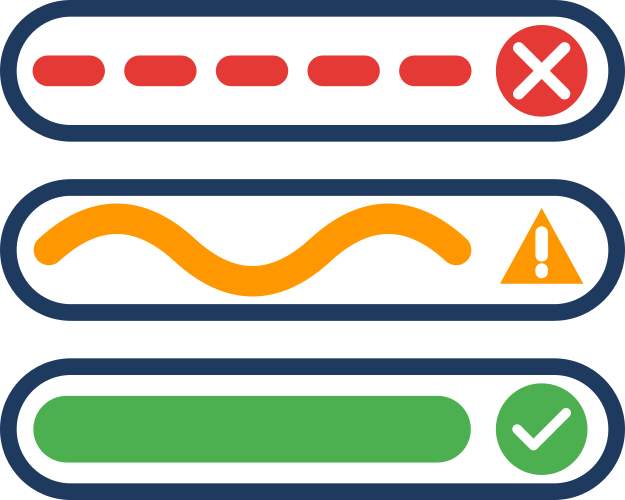
- Critical Issues: Count of critical findings (🔴)
- Warnings: Count of warnings (🟡)
- Good: Count of optimal results (🟢)
Filtering Results
Use the filter dropdown to focus on specific results:
- All Checks: Show everything
- Critical Only: Show only critical issues
- Warnings Only: Show only warnings
- Good Only: Show only good results
- By Category: Filter by System, Database, Security, etc.
TIP
When troubleshooting, start by addressing Critical issues first, then move to Warnings.
Check Execution Tips
When to Run Checks
Run health checks:
- After installing or updating Joomla
- After adding/updating extensions
- Before major site changes
- After server migrations
- Monthly as part of routine maintenance
- When experiencing unexplained issues
Performance Considerations
- Checks are read-only and safe to run anytime
- Some checks may query large database tables
- On shared hosting, avoid running during peak traffic hours
- Results are cached in session for quick re-viewing
What If Checks Fail to Complete?
If checks timeout or fail:
- Check your PHP
max_execution_timesetting (should be ≥60 seconds) - Verify your PHP memory limit (recommended ≥128MB)
- Try running checks during off-peak hours
- Check your server error logs for clues
Next Steps
- Reading Results - Learn how to interpret findings
- Exporting Reports - Generate shareable reports
- Understanding Checks - Learn what each check does