Getting Started
Welcome to Health Checker for Joomla! This guide will help you run your first health check and understand the results.
Prerequisites
Before you begin, ensure:
- ✅ Health Checker is installed (see Installation)
- ✅ Core plugin is enabled
- ✅ You're logged in as Super Administrator
Do you have more than one site to check the health of?
Multiple Joomla Sites to Monitor?

This FREE Health Checker component only checks the health of a single site - the one it's installed on.
If you manage multiple Joomla sites, mySites.guru gives you centralized health checks for all your sites in one place:
- 🏥 Monitor unlimited sites from one dashboard
- 🔔 Near Realtime Email Alerting for issues
- 📊 Historical tracking across all your Joomla installations
- 🎯 Client reports with white-label branding
- ⚡ Bulk updates - update multiple sites at once
- 🔒 Security & uptime monitoring for your entire portfolio
Perfect for agencies, freelancers, and IT teams managing client sites. mySites.guru = The Original Joomla Health Checker Since 2012.
Your First Health Check
1. Access Health Checker
From your Joomla administrator panel:
- Navigate to Components → Health Checker
- You'll see the Health Checker report page
2. Run the Check
Click the Run Health Check button in the toolbar.
What happens:
- All health checks execute in parallel via AJAX
- Results appear as they complete
- Progress indicator shows completion status
- Takes 5-15 seconds depending on your site
3. Review Results
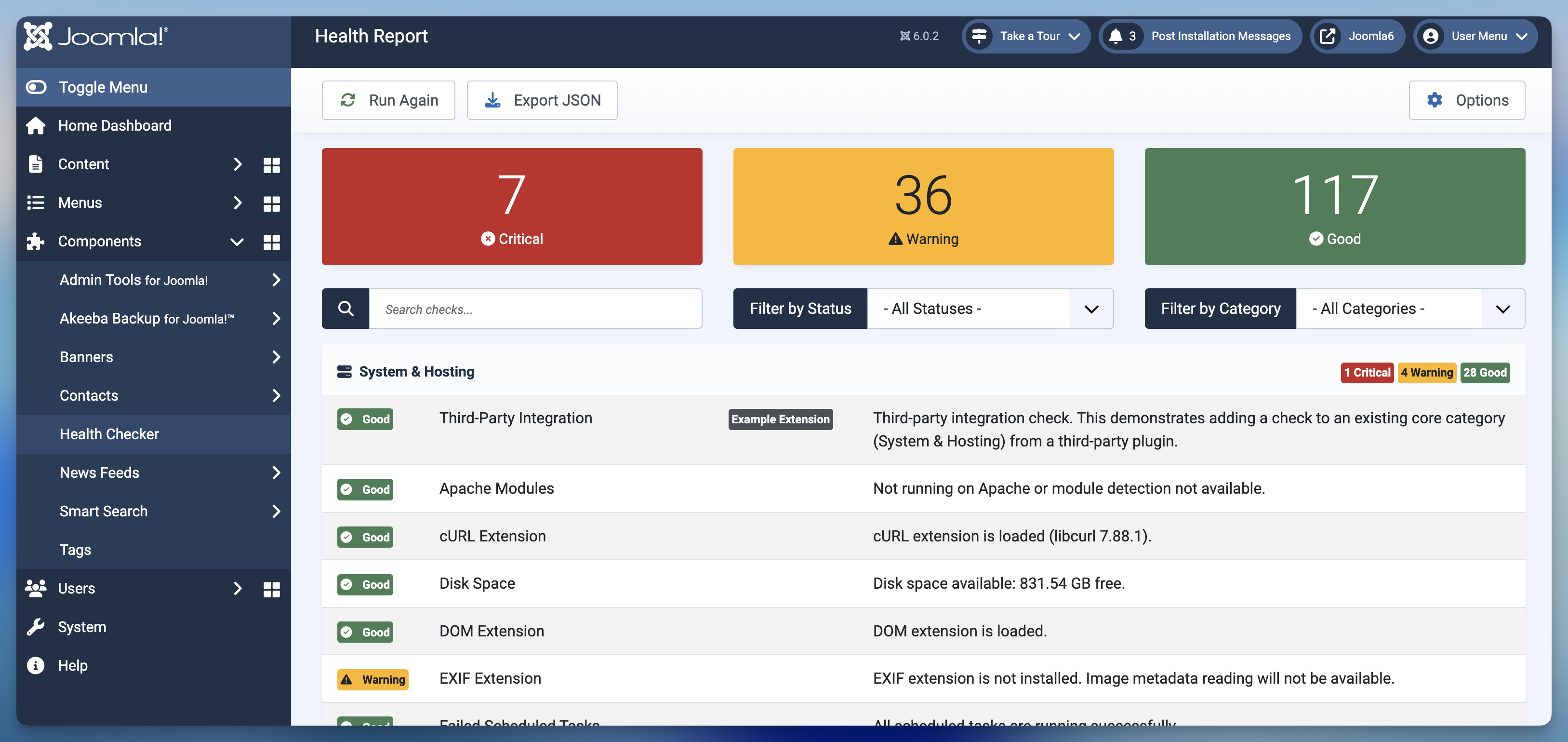
Results are organized by category and status:
Status Indicators
- 🔴 Critical - Immediate action required, site may be broken or compromised
- 🟡 Warning - Should be addressed, but site still functions
- 🟢 Good - Everything is optimal
Categories
Results are grouped into 8+ categories:
| Category | What It Checks |
|---|---|
| System & Hosting | PHP version, extensions, disk space, server config |
| Database | Connection, charset, table health, backups |
| Security | Debug mode, HTTPS, file permissions, authentication |
| Users | Admin accounts, passwords, inactive users |
| Extensions | Updates available, disabled plugins, compatibility |
| Performance | Caching, compression, OPcache |
| SEO | Meta tags, sitemaps, robots.txt |
| Content Quality | Orphaned articles, broken links, empty categories |
4. Filter Results
Use the filter options to focus on specific issues:
By Status:
- Show only Critical issues
- Show only Warnings
- Show only Good results
- Show All (default)
By Category:
- Filter to specific category (e.g., Security only)
- Combine with status filter (e.g., "Critical issues in Security category")
5. Manage Which Checks Run
You can enable or disable individual health checks to customize which checks run on your site:
- Navigate to Extensions → Plugins
- Search for "Health Checker - Core Checks"
- Click to edit the plugin
- Expand category fieldsets (Content, Database, Security, etc.)
- Uncheck boxes for checks you want to disable
- Click Save & Close
Why disable checks?
- They're not relevant to your site (e.g., JSON extension if you don't use it)
- They generate false positives for your specific configuration
- Performance optimization - disabled checks don't execute
Learn More
See the complete guide: Managing Checks
Understanding Results
Reading a Check Result
Each check shows:
[Status Icon] Check Title
Description of the result and what it means
Example - Good Status:
✓ PHP Version
Your server is running PHP 8.3.0, which meets the recommended version (8.2+).
Example - Warning Status:
⚠ System Cache Disabled
Joomla system cache is disabled. Enabling it can significantly improve performance.
Example - Critical Status:
✗ Debug Mode Enabled
Debug mode is enabled in production. This exposes sensitive information and should be disabled immediately.
Provider Attribution
Some checks show a provider badge:
- Core - Built-in checks (no badge shown)
- MySites.guru - Integration checks
- Akeeba Backup - Backup monitoring (if installed)
- Third-party plugins - Custom checks from extensions
Taking Action
Addressing Critical Issues
Critical issues require immediate attention:
- Read the description - Understand what's wrong
- Follow recommendations - Each check suggests fixes
- Verify the fix - Run health check again
- Confirm resolved - Check should now show Good or Warning status
Addressing Warnings
Warnings should be addressed but aren't urgent:
- Prioritize - Some warnings matter more for your site
- Plan fixes - Schedule time to address them
- Monitor - Re-run checks periodically
Good Results
Green/Good results mean everything is optimal for that check. No action needed!
Exporting Reports
Share results with your team or hosting provider:
JSON Export
Use for:
- API integration
- Automated monitoring
- Scripting
- Data analysis
How to export:
- Click Export dropdown in toolbar
- Select JSON
- File downloads as
health-check-results-YYYY-MM-DD.json
HTML Export
Use for:
- Sharing with non-technical users
- Printing
- Email attachments
- Support tickets
How to export:
- Click Export dropdown in toolbar
- Select HTML
- File downloads as
health-check-report-YYYY-MM-DD.html - Open in browser - formatted, printable report
Dashboard Widget
Add a quick health overview to your admin dashboard:
Enable Widget
- Go to Home Dashboard
- Click Customize This Page (top right)
- Find Health Checker in available modules
- Drag to your preferred position
- Click Save & Close
Widget Features
The dashboard widget shows:
- Summary counts - Critical, Warning, Good totals
- Quick link - Click to view full report
- Auto-refresh - Updates periodically via AJAX
Best Practices
Regular Checks
Run health checks:
- Weekly - For active production sites
- After updates - After Joomla or extension updates
- After changes - After configuration changes
- Before launches - Before going live with new features
Prioritize Issues
Focus on:
- Critical issues first - These can break your site
- Security warnings - Protect your site from attacks
- Performance warnings - Improve user experience
- Other warnings - Address when convenient
Keep Records
Export reports regularly:
- Before major changes - Baseline for comparison
- After fixing issues - Proof of resolution
- Monthly - Track site health over time
Common First-Time Issues
All Checks Show Critical
Cause: Usually a new installation with default settings
Fix: This is normal! Go through each critical issue and configure your site properly. Many will resolve as you configure Joomla.
No Checks Appear
Cause: Core plugin not enabled
Fix:
- Go to System → Manage → Plugins
- Search for "Health Checker - Core"
- Click to enable it (green checkmark)
- Return to Health Checker and run again
Checks Don't Load
Cause: JavaScript error or server timeout
Fix:
- Check browser console for errors (F12 → Console tab)
- Clear Joomla cache (System → Clear Cache)
- Increase PHP
max_execution_timeif needed - Check server error logs
Next Steps
Now that you've run your first health check:
- Learn more - Read Understanding Health Checks for detailed explanations
- Fix issues - Work through Critical and Warning results
- Explore features - Try filtering, exporting, and the dashboard widget
- Schedule regular checks - Make health monitoring a routine
Getting Help
- Documentation - Browse this user guide for detailed help
- GitHub Issues - Report bugs or request features
Quick Reference
| Task | How To |
|---|---|
| Run checks | Components → Health Checker → Run Health Check button |
| Filter results | Use status/category dropdowns |
| Export JSON | Export dropdown → JSON |
| Export HTML | Export dropdown → HTML |
| Add dashboard widget | Home Dashboard → Customize This Page |
| Re-run single check | Refresh page, click Run Health Check |
| Clear results | Results are session-based, refresh to clear |
Congratulations! You've completed your first health check. Regular monitoring helps keep your Joomla site secure, fast, and healthy.