Reading Results
Learn how to interpret health check findings and understand what actions to take.
Dark Mode Support
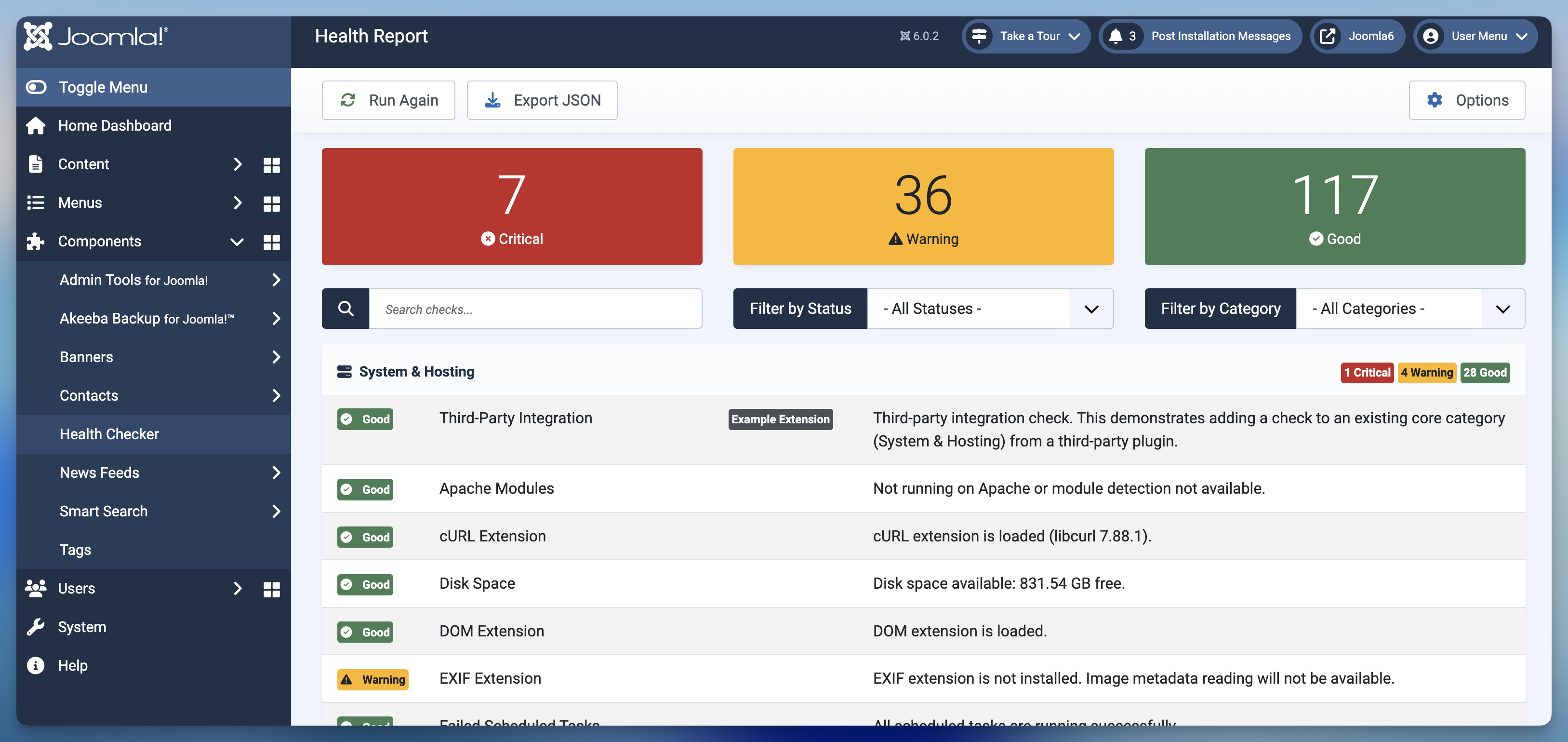
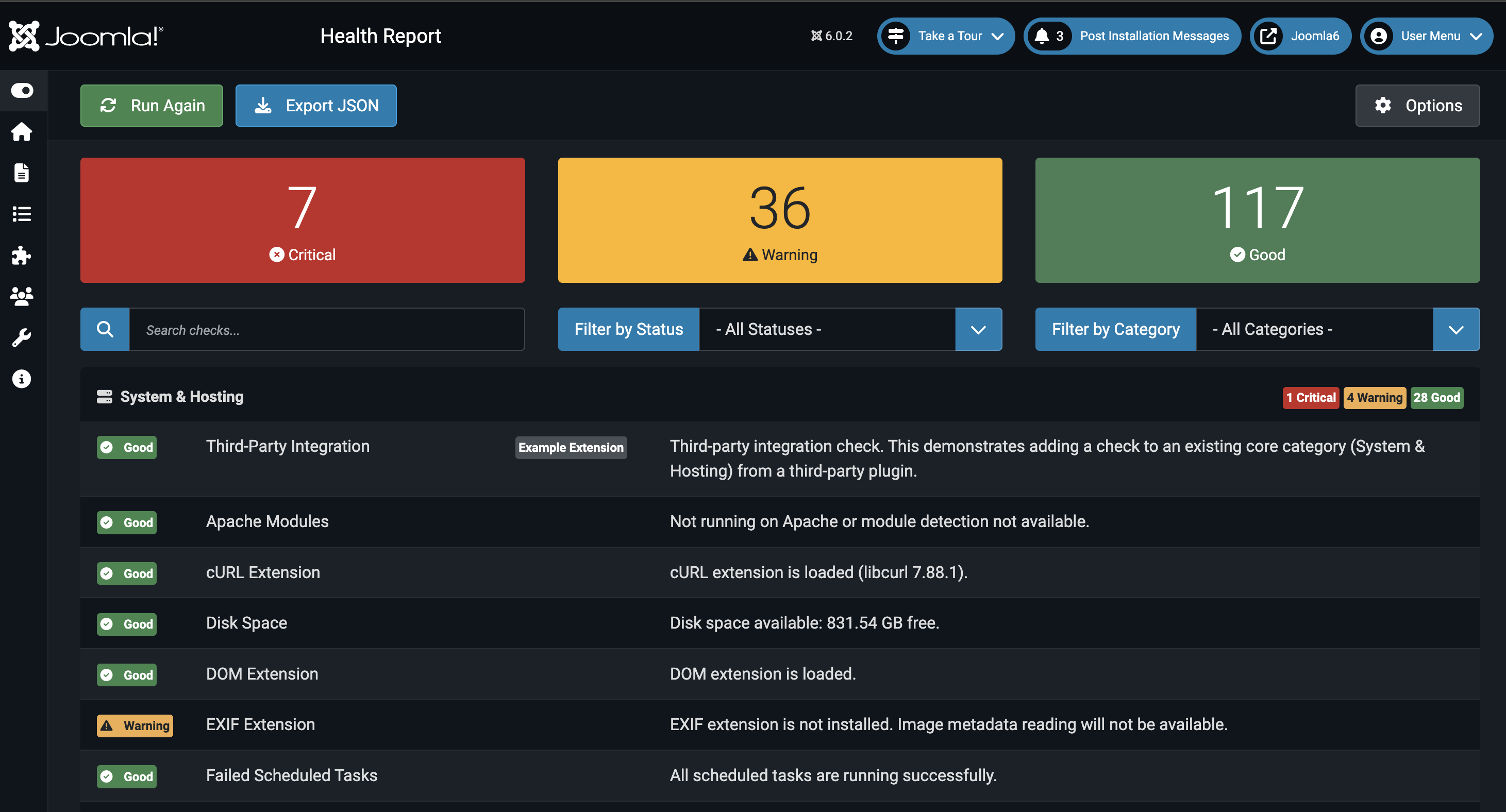
Health Checker fully supports Joomla's dark mode theme. All results are clearly readable in both light and dark modes.
Result Structure
Each health check result includes:
Status Badge
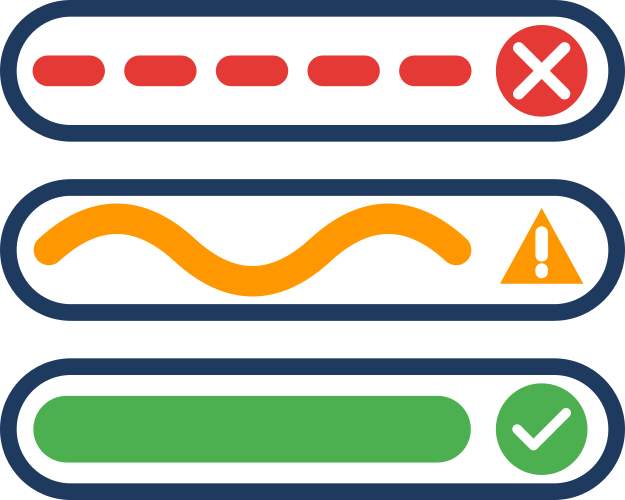
- 🔴 Critical: Requires immediate attention
- 🟡 Warning: Should be addressed soon
- 🟢 Good: Everything optimal
Check Information
- Title: Name of the check
- Category: Which category it belongs to (System, Security, etc.)
- Provider: Who provides this check (usually "Core")
- Description: Details about what was found
Action Buttons
Each check row may display action buttons on the right side:
- Explore: Takes you to the relevant admin page where you can fix the issue. Only appears when an action is available for that check.
- Docs: Opens documentation for this check in a new tab. Provides detailed explanations, troubleshooting steps, and best practices.
Understanding Status Levels
Critical (🔴)
What it means: Your site is broken, severely compromised, or at risk of immediate data loss.
Examples:
- PHP version below minimum requirements
- Database connection failure
- Critical security vulnerability
- Disk space critically low
What to do: Fix immediately. Your site may not function properly or could be at serious risk.
Warning (🟡)
What it means: Something should be addressed, but your site is still functional.
Examples:
- Recommended PHP extensions missing
- Suboptimal cache configuration
- Non-critical updates available
- Performance improvements needed
What to do: Plan to address these soon. While not urgent, warnings can lead to problems if ignored.
Good (🟢)
What it means: Everything is configured optimally for this check.
Examples:
- PHP version is current
- Required extensions installed
- Security settings properly configured
- Performance optimizations enabled
What to do: Nothing! This check passed successfully.
Reading Descriptions
Each result includes a description explaining:
- What was checked: What aspect of your site was examined
- What was found: The specific condition detected
- Why it matters: Implications for your site
- Recommended action: What you should do (for warnings/critical)
Example: Critical Result
🔴 Critical: PHP Version Below Minimum

Your site is running PHP 7.4.33, but Joomla 5 requires
PHP 8.1.0 or higher.

Why this matters: Your site may experience compatibility
issues, security vulnerabilities, and missing features.
Joomla 5 cannot function properly on PHP 7.4.

Recommended action: Contact your hosting provider to
upgrade to PHP 8.1 or later immediately.
Example: Warning Result
🟡 Warning: Page Cache Disabled

Page caching is currently disabled in Global Configuration.

Why this matters: Without caching, your site loads slower
for visitors, consumes more server resources, and may
struggle under high traffic.

Recommended action: Enable Conservative or Progressive
caching in System → Global Configuration → System.
Example: Good Result
🟢 Good: HTTPS Enabled

Your site is using HTTPS with a valid SSL certificate
and forced HTTPS is enabled.

Why this matters: HTTPS encrypts data between your site
and visitors, protecting sensitive information and
improving SEO rankings.
Grouping and Organization
Results are organized in several ways:
By Category
Results are grouped into 8+ categories:
- System & Hosting
- Database
- Security
- Users
- Extensions
- Performance
- SEO
- Content Quality
Use category filtering to focus on specific areas.
By Provider
If you have integration plugins installed (like Akeeba Backup), you'll see checks from multiple providers. Each check clearly shows its provider attribution.
By Status
Use the status filter to see:
- All critical issues at once
- Only warnings
- Only good results
- All checks together
Common Patterns
Multiple Related Issues
If you see several warnings in the same category, they may be related:
Example:
- Warning: GZip compression disabled
- Warning: Page cache disabled
- Warning: Browser cache disabled
Pattern: Multiple performance optimizations are off Action: Review your Global Configuration → System settings
Progressive Warnings
Some issues escalate from warning to critical:
- Warning: Disk space below 20%
- Critical: Disk space below 5%
Address warnings before they become critical.
False Positives
Occasionally a check may flag something that's intentional:
Example: "Admin Tools not installed" shows as warning Reason: This is expected if you don't use Admin Tools
You can safely ignore warnings for features you don't need.
Taking Action
Priority Order
- Fix Critical Issues First: These affect site functionality
- Address Security Warnings: Protect against vulnerabilities
- Resolve Performance Warnings: Improve user experience
- Optimize Everything Else: Fine-tune remaining areas
When You're Unsure
If a result's description isn't clear:
- Check the Checks Reference for detailed explanations
- Search Joomla documentation for the specific feature
- Ask in Joomla forums or communities
- Consult with your hosting provider
- Hire a Joomla professional if needed
Re-Running After Fixes
After making changes:
- Click "Clear Results" to remove old results
- Click "Run Health Check" to get fresh results
- Verify the issue is resolved (status should improve)
Next Steps
- Exporting Reports - Share results with your team or host
- Checks Reference - Detailed documentation for each check
- Dashboard Widget - Monitor health from your dashboard