Dashboard Widget
The Health Checker dashboard widget (module) provides at-a-glance monitoring directly on your Joomla admin dashboard.
Overview
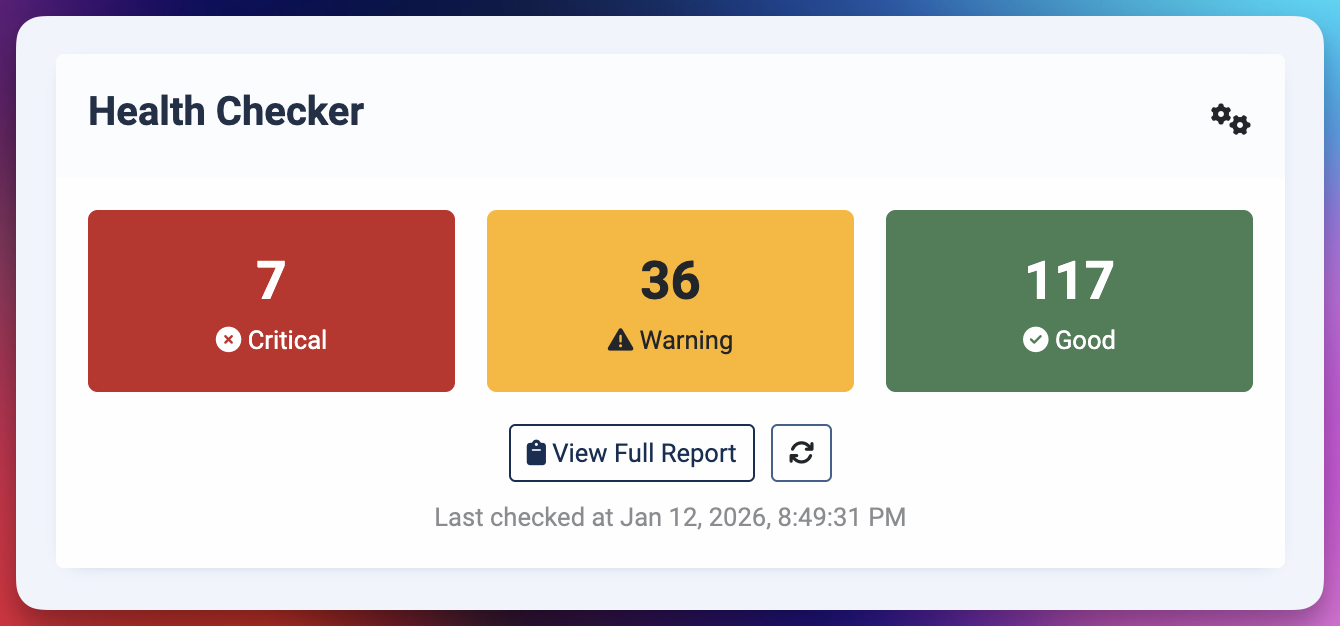
The dashboard widget shows:
- Summary of your last health check
- Count of critical issues, warnings, and good results
- Quick link to run a new check
- Visual status indicators
Installation
The module is included with Health Checker but must be enabled:
- Navigate to System → Site Modules (or System → Administrator Modules)
- Find "Health Checker Dashboard"
- Click to open
- Set Status to Published
- Configure position (usually
cpanelfor dashboard) - Save
Configuration Options
Basic Settings
- Title: Display title (default: "Site Health")
- Show Title: Whether to show the module title
- Position: Where on dashboard to display (usually
cpanel) - Access: Who can see it (recommended: Super Users only)
- Status: Published/Unpublished
Display Options
- Show Summary: Display counts of critical/warning/good
- Show Last Check Date: When health check was last run
- Show Quick Actions: Include "Run Check" button
- Color Theme: Match your admin template
Widget Features
Status Summary
The widget shows three counters:
🔴 Critical: 2
🟡 Warning: 15
🟢 Good: 109
This gives you instant visibility into site health without opening the full component.
Last Check Timestamp
See when health checks were last run:
Last checked: 2 hours ago
or
Last checked: January 12, 2026 at 3:30 PM
This helps you know if results are current or stale.
Quick Actions
Click "Run Health Check" directly from the widget to:
- Execute a fresh health check
- Automatically redirect to results page
- Update widget with new results
Visual Indicators
The widget uses color coding:
- Green border: All checks good (no warnings or critical)
- Yellow border: Warnings present (no critical)
- Red border: Critical issues found
Usage Tips
Daily Dashboard Review
Start your day by checking the widget:
- Log in to Joomla admin
- Check the dashboard widget
- If you see red (critical) or increased warnings:
- Click "Run Health Check"
- Review and address issues
- If all green, you're good to go
Module Positioning
For optimal visibility:
- Position:
cpanel(main dashboard area) - Ordering: Place near the top
- Access: Super Users only (security)
Multiple Admin Users
If your site has multiple Super Admins:
- Each admin sees the same widget
- Results are shared (stored in session)
- Last check date reflects the most recent check by anyone
TIP
For team environments, establish a routine where one person runs morning checks and notifies others of issues.
Widget States
No Results Available
When you first install or haven't run checks:
No health check results available.
Click "Run Health Check" to scan your site.
Results Available
After running checks:
Site Health Summary

🔴 Critical: 0
🟡 Warning: 3
🟢 Good: 123

Last checked: 5 minutes ago

[View Full Report] [Run Health Check]
Stale Results
If results are more than 24 hours old:
⚠️ Results are outdated (last checked 2 days ago)
Consider running a fresh health check.

[Run Health Check]
Troubleshooting
Widget Not Appearing
- Verify Installation: Go to Extensions → Modules, confirm it's installed
- Check Status: Ensure Status is "Published"
- Verify Position: Confirm Position is set to
cpanel - Check Access: Make sure you're logged in as Super User
- Clear Cache: System → Clear Cache
Widget Shows No Data
- Run Health Check: Navigate to Components → Health Checker
- Click "Run Health Check": Execute checks
- Return to Dashboard: Widget should now show results
Widget Not Updating
- Clear Your Session: Log out and back in
- Clear Browser Cache: Refresh with Ctrl+F5 (Cmd+R on Mac)
- Check Module Settings: Verify caching isn't too aggressive
Best Practices
Regular Monitoring
- Check the widget daily as part of your admin routine
- Run full health checks weekly (minimum)
- Investigate any increases in warnings or critical issues immediately
Team Coordination
For multi-admin sites:
- Designate one person for morning health checks
- Document who's responsible for addressing different issue types
- Use exported reports to communicate findings
- Establish escalation procedures for critical issues
Performance Impact
The widget:
- Only displays cached results (no live checks)
- Adds minimal load to your dashboard
- Doesn't slow down your admin panel
- Uses lightweight queries
Customization
Styling
The widget uses Joomla's admin CSS framework. To customize:
- Override module template in your admin template
- Add custom CSS via template's
custom.css - Use module class suffix for targeted styling
Advanced Configuration
Developers can extend the module by:
- Creating custom module layouts
- Adding additional display fields
- Integrating with other monitoring tools
- Creating custom alert thresholds
See Developer Documentation for details.
Next Steps
- Running Health Checks - Execute comprehensive scans
- Reading Results - Interpret findings
- Understanding Checks - Learn about all health checks